


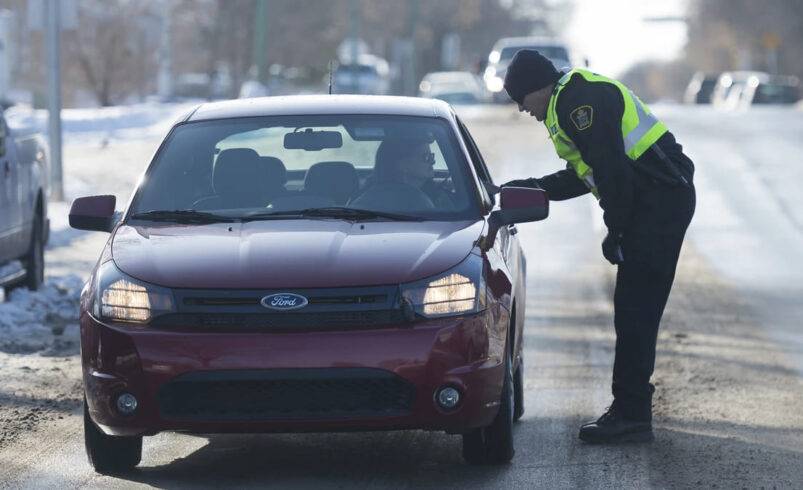

The sight of flashing blue and red lights in your Driving Tip can make anyone’s heart race. Whether it is a routine traffic stop for a broken taillight or a more complex situation, knowing your rights—and having a record of the encounter—is a powerful tool for every driver.
While many drivers instinctively reach for their phones to start recording, fumbling with a lock screen while a police officer approaches your window can be misinterpreted as reaching for a weapon or being non-compliant. This is where Apple’s voice assistant becomes a potential lifesaver.
By using a specific, pre-configured Siri Shortcut, your iPhone can automatically dim your screen, pause your music, send your location to a loved one, and begin recording video—all with a simple voice command. In this guide, we will walk you through how to set up the “I’m Getting Pulled Over” shortcut and why this technology is a game-changer for modern driving safety.
The Power of the “I’m Getting Pulled Over” Siri Shortcut
Technology has evolved to a Driving Tip your smartphone can act as an objective witness. The “I’m Getting Pulled Over” shortcut was originally developed by Robert Petersen and has since been updated by the developer community to stay compatible with the latest versions of iOS.
What Happens When You Trigger the Shortcut?
When you say the magic words, your iPhone executes a sequence of protective actions instantly:
Pauses Media: Any music or podcasts playing through your car speakers are silenced so the audio recording is clear.
Dims Brightness: The screen brightness is turned all the way down to avoid distracting the officer or drawing unnecessary attention to the device.
Activates Do Not Disturb: Incoming calls and notifications are silenced so the recording isn’t interrupted.
Sends Location: A text message is sent to a pre-selected emergency contact with your current GPS coordinates.
Starts Video Recording: The front-facing camera begins recording the interaction.
Cloud Backup: Once you stop the recording, the shortcut can be set to automatically upload the video to iCloud or Dropbox.
Step-by-Step: How to Set Up Siri to Record Police Stops
This feature is not “on” by default. You need to download the shortcut and grant it the necessary permissions. Follow these steps to get it ready before you hit the road.
Enable Shortcuts in Settings
Ensure your iPhone is ready to accept user-created shortcuts. Go to Settings > Shortcuts and ensure that “Private Sharing” or “Allow Untrusted Shortcuts” is enabled (depending on your iOS version).
Download the Shortcut
Search for the “I’m Getting Pulled Over” shortcut via a trusted source like RoutineHub or the r/Shortcuts subreddit. Because these are community-driven, always ensure you are downloading the most recent version.
Configure Your Emergency Contacts
During the setup process, the app will ask you to choose a contact. This should be someone reliable—a spouse, parent, or lawyer—who will know what to do if they receive a text saying you have been pulled over.
Grant Permissions
For the shortcut to work, you must click “Allow” for several prompts:
Access to the Camera
Access to the Microphone
Access to Location Services
Permission to Send Messages
Test It Out
Park your car in your driveway and say, “Hey Siri, I’m getting pulled over.” Ensure the video starts and the text message sends correctly. It is better to find a glitch in your driveway than during a real traffic stop.
Why Recording is Your Legal Right
In the United States and many other democratic nations, the First Amendment generally protects your right to record police officers performing their duties in public spaces, as long as you are not interfering with their work.
Transparency and Accountability
A video record provides an objective account of what was said and done. This protects the driver from misconduct and protects the officer from false accusations. It ensures that both parties adhere to the law.
Peace of Mind
Knowing that a video is being recorded and your location has been sent to a loved one can help you stay calm. A calm driver is less likely to escalate a situation, leading to a safer outcome for everyone involved.
ritical Tips for Recording During a Traffic Stop
Using Siri is a great start, but how you handle the device during the stop is just as important.
Keep the Phone Mounted
The best way to use this Siri tip is to have your iPhone in a dashboard or vent mount. This keeps the camera at eye level to record the interaction through the driver’s side window without you having to hold the phone. Moving your hands around to hold a phone can be seen as a threat by an officer.
Announce the Recording (If Required)
Depending on your local “wiretapping” laws (One-Party vs. Two-Party Consent), you may or may not be legally required to tell the officer you are recording. However, for the sake of transparency, many legal experts suggest calmly saying: “Officer, for my safety and yours, I am recording this interaction on my mounted phone.”
Do Not Interfere
Recording is a right, but interference is a crime. Do not hold the phone in the officer’s face or use it in a way that prevents them from doing their job. Let the Siri Shortcut run in the background while you keep your hands on the steering wheel where the officer can see them.
Privacy and Data: Where Does the Video Go?
One of the best features of this Siri driving tip is the automated backup. If your phone is seized or damaged during the encounter, a local recording might be lost.
By configuring the shortcut to send the video to your iCloud Drive or a shared Google Drive folder immediately after the stop ends, you ensure the footage exists on a remote server. This is a vital layer of protection for your digital evidence.
Making Siri Your Digital Witness
The “I’m Getting Pulled Over” shortcut is a perfect example of how technology can be used to empower citizens and promote transparency. It turns your iPhone from a simple communication device into a sophisticated tool for legal protection.
Take ten minutes today to set up this shortcut. Hopefully, you will never need to use it—but if the day comes when those lights appear in your mirror, you’ll be glad Siri is there to watch your back.